Antons Video Productions
20 Solander Ave
West Hoxton 2171 NSW, Australia
+612 9825 9999
Creating a PAL DV Capture Device Preset with EDIUS 6 and 7
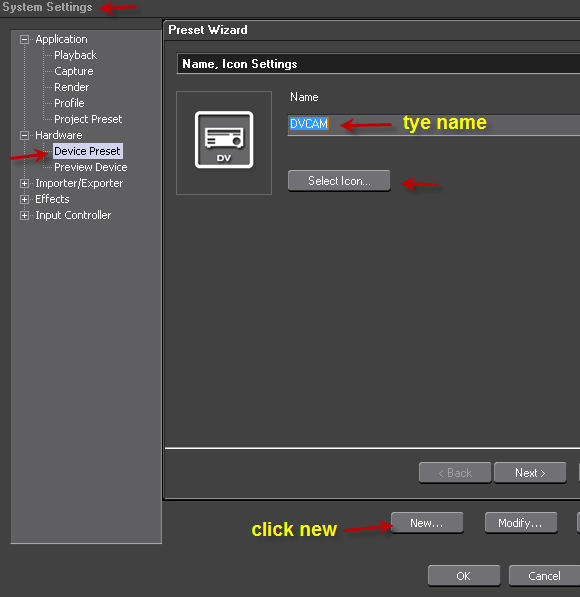
1. Go to System Settings, Hardware, Device Preset, click new, type name and select icon
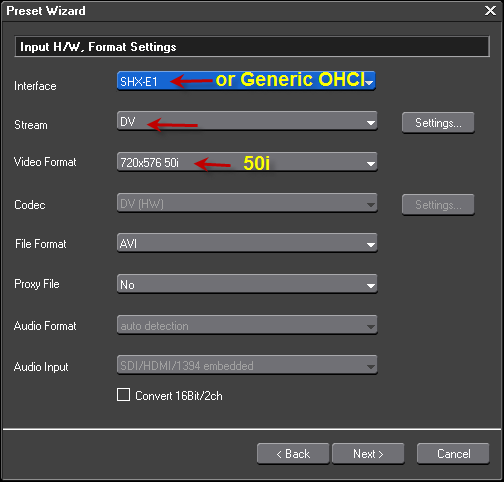
2. Choose your Capture hardware or select Generic OHCI, select DV Stream and set 720x576 50i and then click Settings
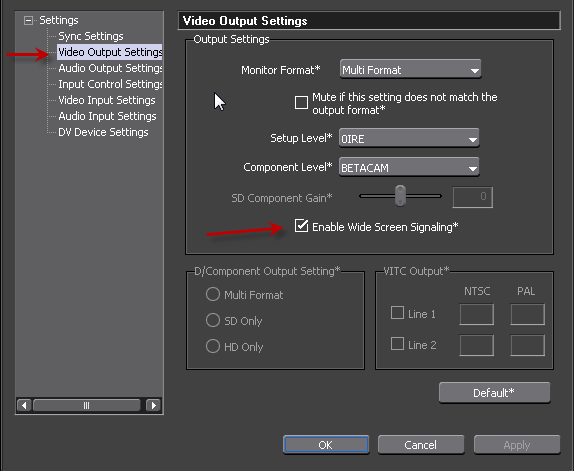
3. Enable Wide Screen Signaling
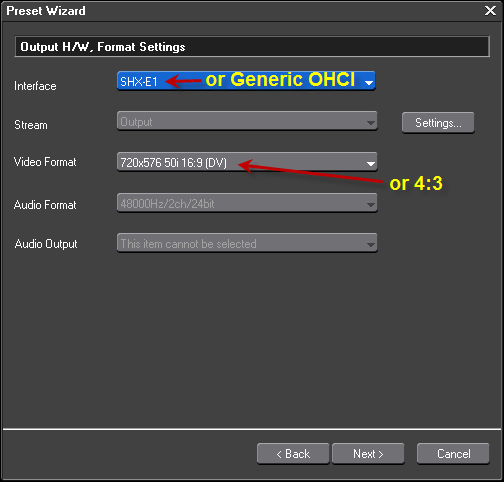
4. Choose your Output Hardware or Generic OHCI and select 720x576 50i 16:9 or 4:3 depending on your requirements
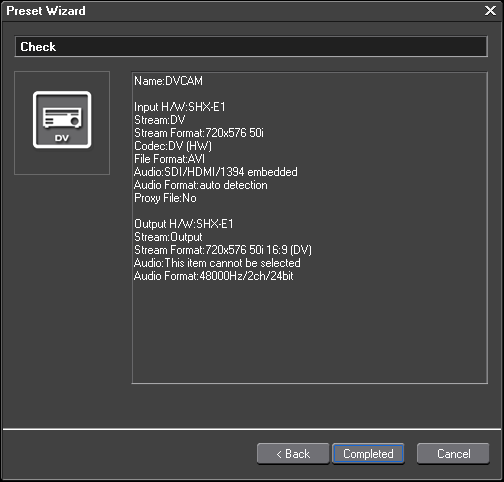
5. Confirm all settings are correct, if not, use Back button to correct
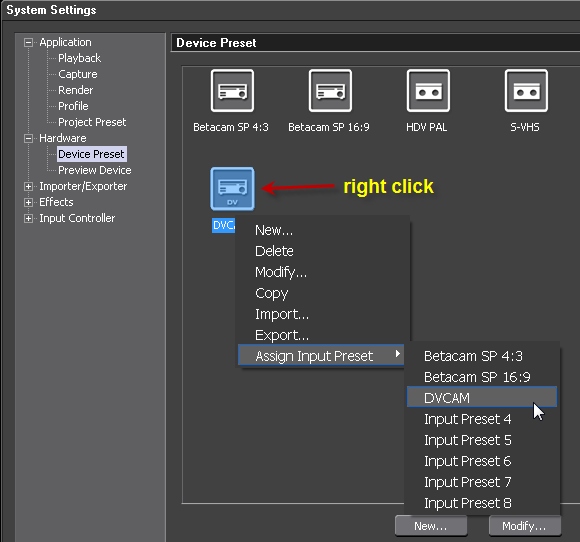
6. Assign an Input Preset, then when you click Capture, you will be able to choose your preset right away
Back to more Video Editing Tips and Tricks