Antons Video Productions
20 Solander Ave
West Hoxton 2171 NSW, Australia
+612 9825 9999
Creating a multiple audio selection menu in DVD-Lab Pro
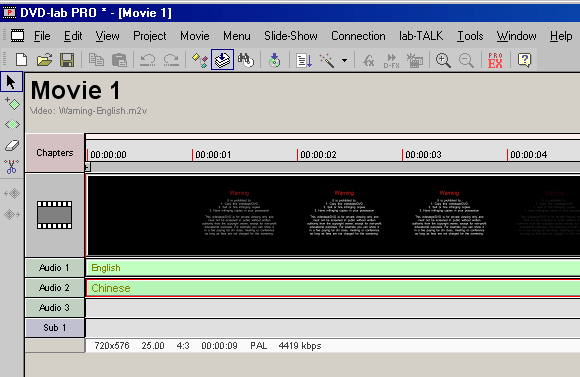
1. add as many as eight audio tracks to the movie timeline
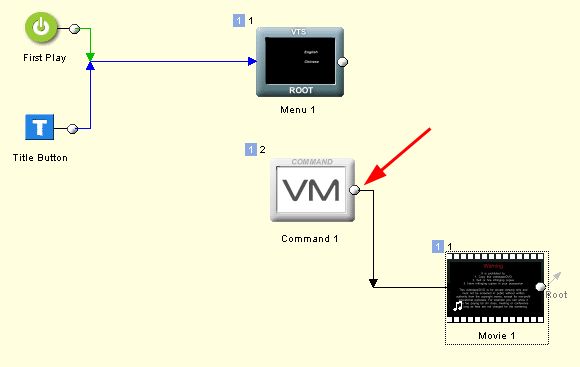
2. add one only VM command and link its end to the movie
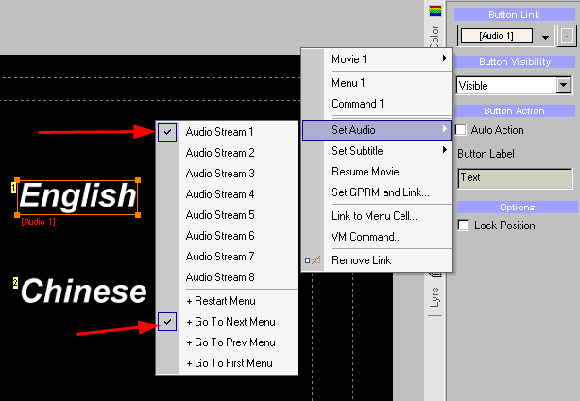
3. create any suitable button and link to (set audio stream1) and (go to next menu)
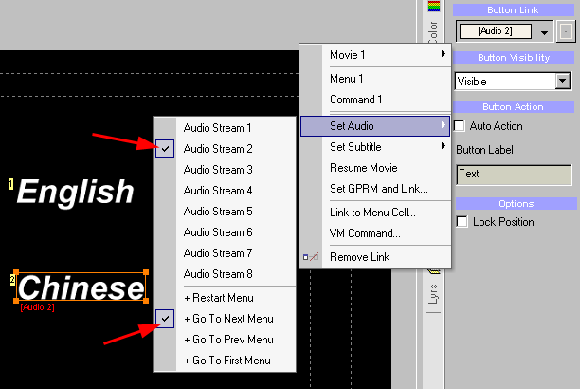
4. create an alternative button and link to (set audio stream2) and (go to next menu) and so on, you can do this 8 times for 8 different audio tracks
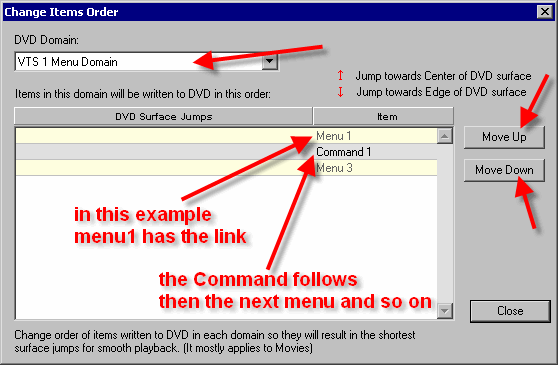
5. Be sure that the VM Object is following the menu that calls it in the order of items, if not, change the order of items.
Alternative more advanced method
1. Add a VM Object and rename it if you wish
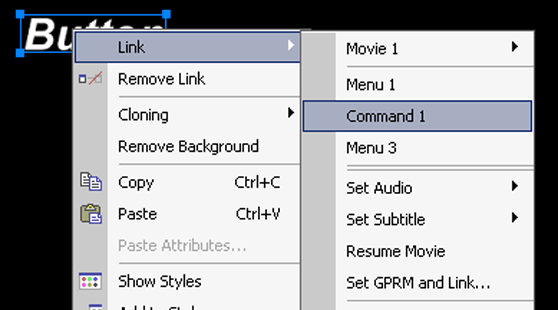
2. Link your Menu Button to the VM Object
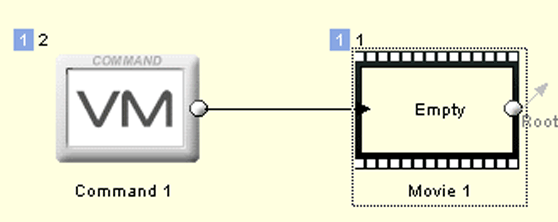
3. Link the End of the Command to the required Movie
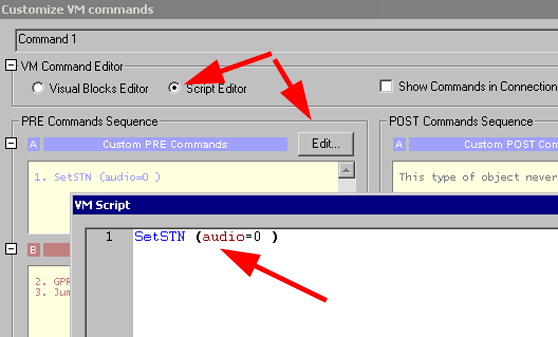
4. Add a Pre Command to the VM by right click, Edit VM Commands
pre command would look like this for audio track 1:
SetSTN (audio = 0)
pre command would look like this for audio track 2:
SetSTN (audio = 1)
pre command would look like this for audio track 3:
SetSTN (audio = 2)
pre command would look like this for audio track 4:
SetSTN (audio = 3)
and so on......
Back to Non-Linear and other Tutorials