Antons Video Productions
20 Solander Ave
West Hoxton 2171 NSW, Australia
+612 9825 9999
Burning DVD-Lab Pro DVD with Nero Burning Rom
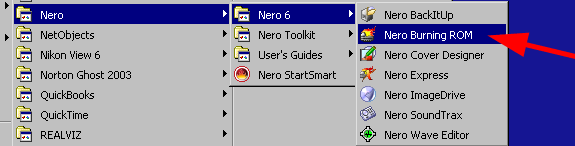
1. Always use Nero Burning Rom and not Nero Express
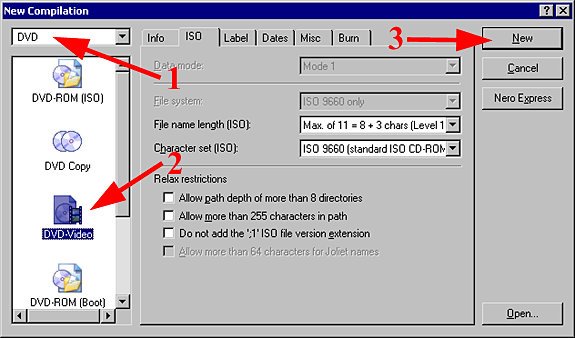
2. Select DVD, then DVD-Video, then click New
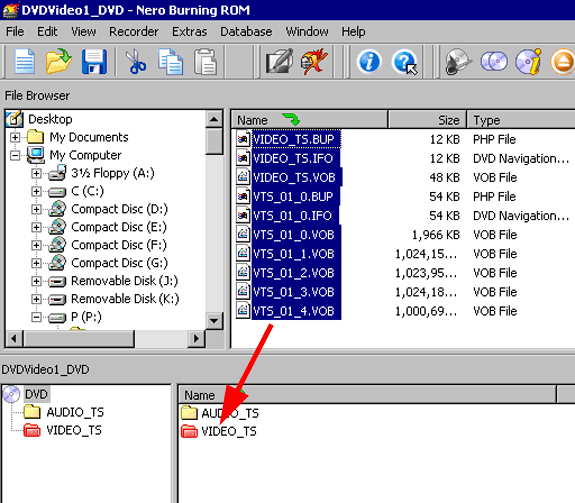
3. Browse for the VIDEO_TS folder created by DVD-Lab Pro and open it, then drag all files to the red VIDEO_TS folder
4. Click the Burn Icon and set the speed to half of what the disk and or burner is rated. If the Burner is rated at 16x and you are using a 16x DVD-R disk, then set burn speed to 8x
If the Burner is rated at 16x and the DVD-R disk is rated at 8x, the set speed to 4x
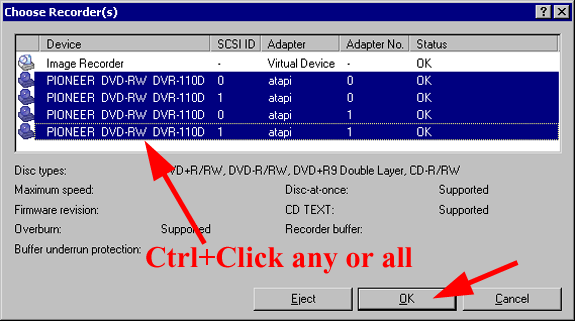
Also, if you have multiple burners, select this option prior to clicking Burn
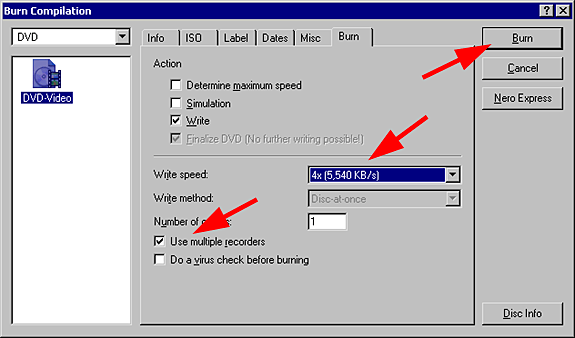
5. Use Ctrl+Click to select any or all burners you wish to use at the same time
Always use quality DVD-R disks such as Tayo Yuden (made in Japan)
Back to Non-Linear and other Tutorials