Antons Video Productions
20 Solander Ave
West Hoxton 2171 NSW, Australia
+612 9825 9999
Using ROBUSKEY in EDIUS for great green or blue chroma key results
ROBUSKEY can be purchased as a plug-in for EDIUS at www.isp.co.jp
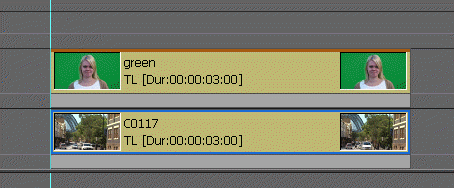
1. Place green or blue clip above a background video track
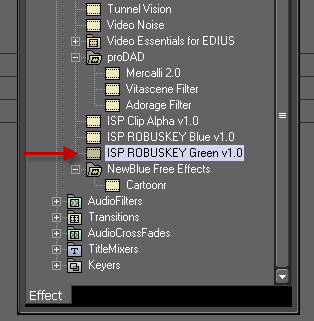
2. Drag Green or Blue ROBUSKEY keyer to green or blue clip, if green clip, use green keyer
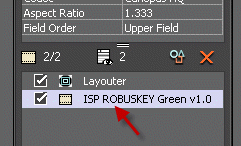
3. Double click the keyer in the EDIUS info palette
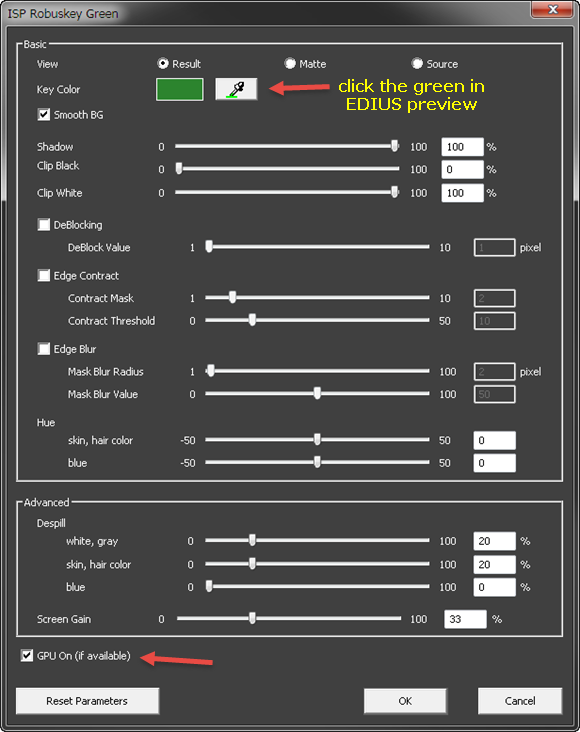
4. Use the color picker to click the green in EDIUS timeline monitor and configure edge blur if desired.
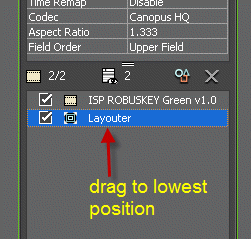
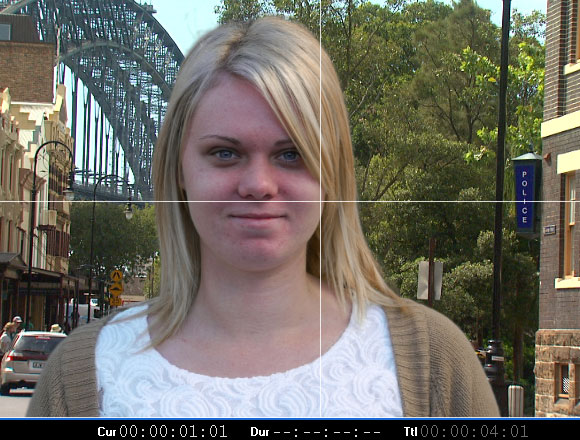
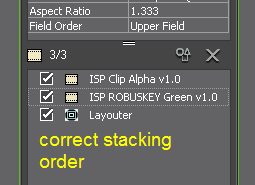
5. Close the keyer and drag the layouter in the info palette to the lowest position, this will allow you to crop, position, size or add drop shadow to the key without any unwanted edges appearing, so no more need for a rectangle tool
ADVANCED Options
6. In case you have a badly lit green or blue background, you can still get a great chroma key by using the included alpha keyer. Drag the ISP Clip Alpha to the green or blue clip
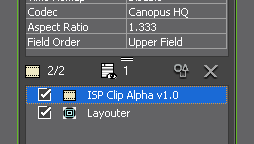
7. Double click, then using the color picker, click the green or blue on the EDIUS timeline monitor, then close
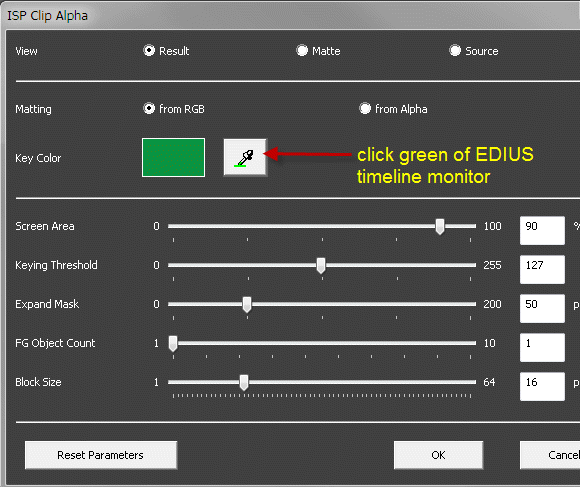
8. This will create an enlarged green mask, removing all unwanted badly lit green or blue
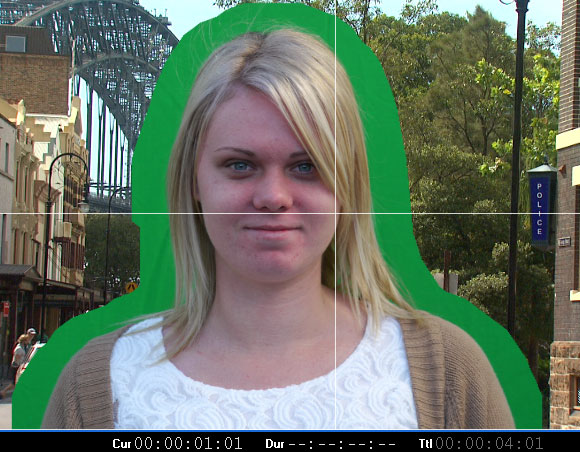
9. Now apply the Green or Blue keyer and click the remaining green with the color picker, then perform all steps as in Step 4
Note the correct stacking order in the info palette
View some real green screen production examples using still or moving backgrounds
Back to more Video Editing Tips and Tricks