Antons Video Productions
20 Solander Ave
West Hoxton 2171 NSW, Australia
+612 9825 9999
EDIUS audio ducking shortcuts
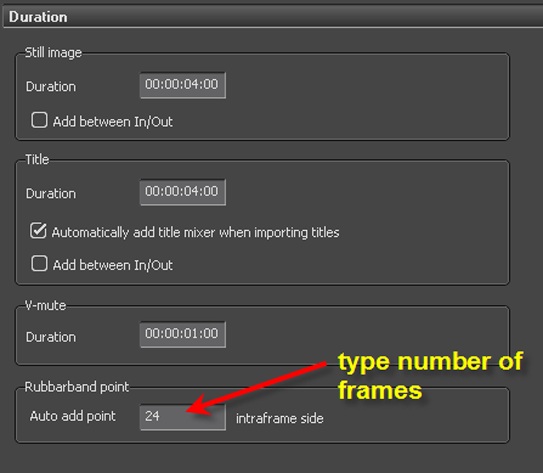
1. Go to Application Settings, Duration, set Rubberband point offset to your liking, in my example 24 frames
2. Add a keyframe to the music track before the voice starts and add another keyframe after the voice ends
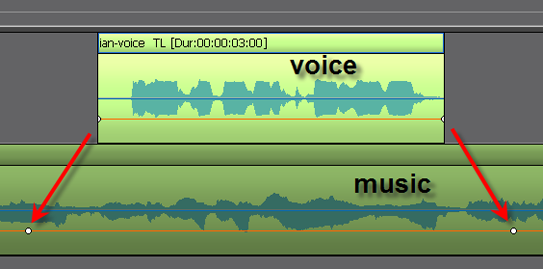
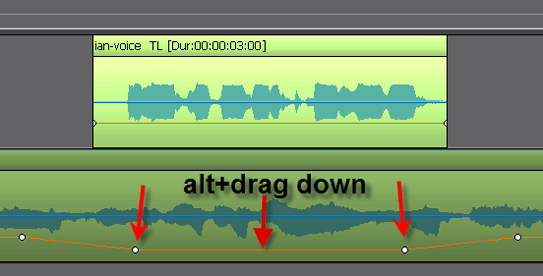
3. Hold Alt and place mouse pointer in between keyframes and drag down, EDIUS 5 will automatically create 2 new keyframes 24 frames away from the original keyframes as indicated by the two red arrows
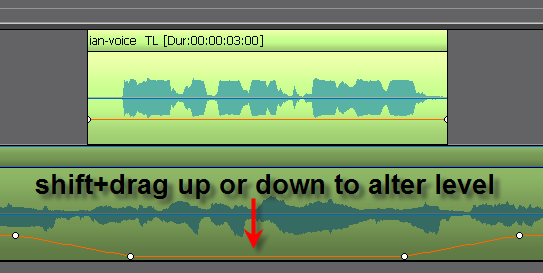
4. To fine tune the ducked audio level at a later stage, hold the Shift key as you drag up or down (if you were to use Alt+drag, a further 2 nodes would be created, so use shift/drag)
5. Right click any node for all other keyboard shortcut options such as Move All
Back to Non-Linear and other Tutorials