Antons Video Productions
20 Solander Ave
West Hoxton 2171 NSW, Australia
+612 9825 9999
Using EDIUS 6 track patches to make it feel like EDIUS 5
(this is my preferred EDIUS6 video editing workflow)
1. Add as many VA and V and A tracks as you like. Then make sure the track patches are next to 1VA and make sure the A track patch is set to A12 (stereo)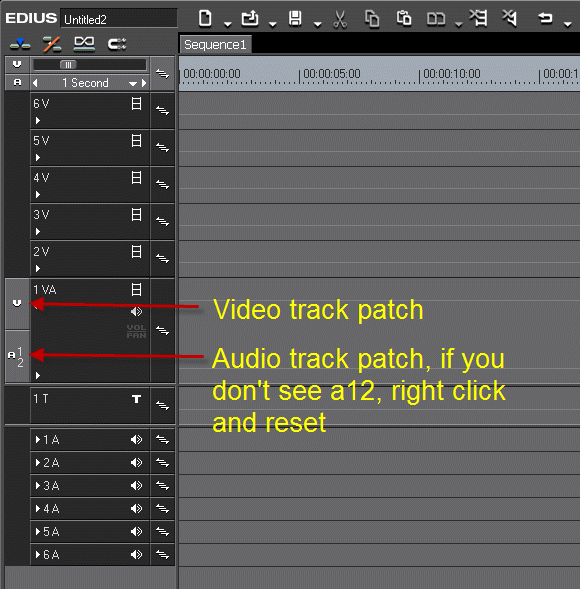
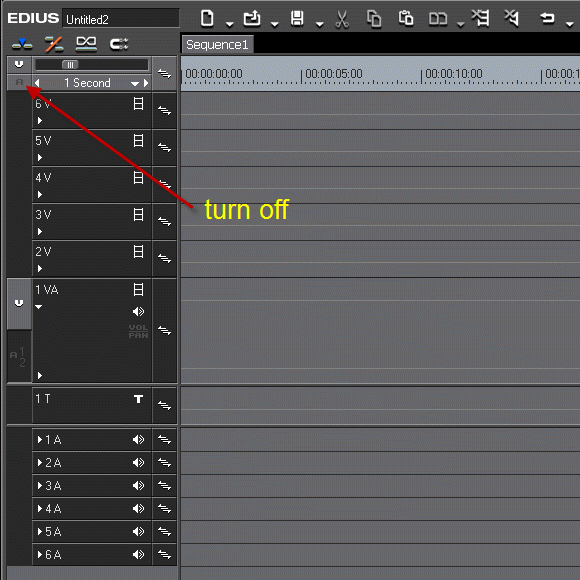
2. Turn off the A control button at the top left of the timeline
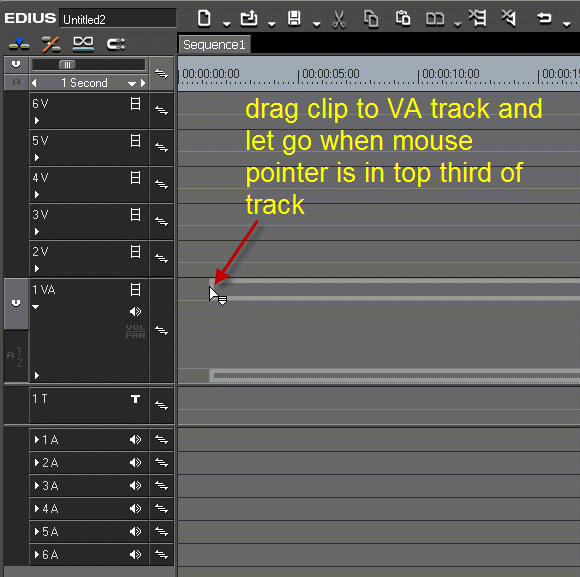
3. If you wish to add video without audio to a VA track, drag the clip and let go when the mouse pointer is within the top third of the track (the video section)
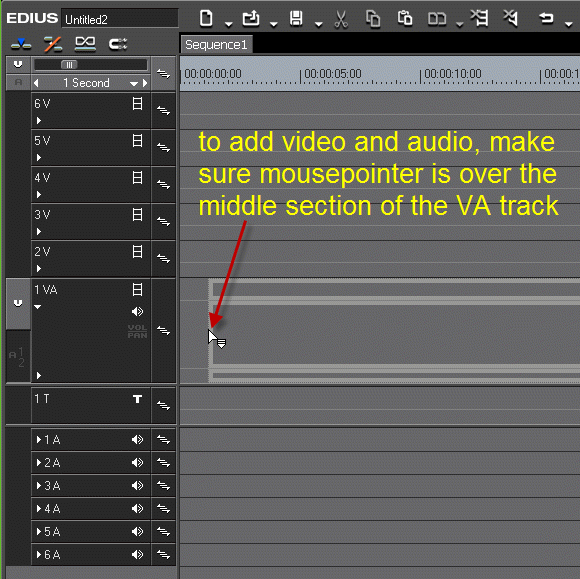
4. If you wish to add video with audio to a VA track, drag the video and let go of the mouse button when the mouse pointer is within the middle section of the VA track (audio section)
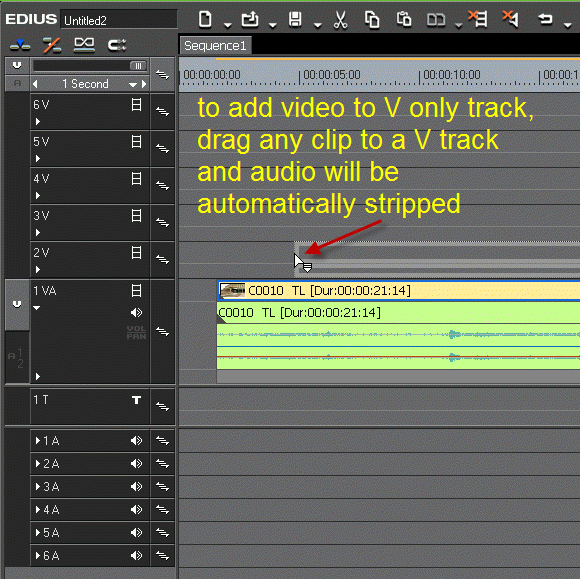
5. Now you can add video to any V track and no audio will ever follow, it will be automatically stripped just like in EDIUS5
Back to more Video Editing Tips and Tricks