Antons Video Productions
20 Solander Ave
West Hoxton 2171 NSW, Australia
+612 9825 9999
Most useful EDIUS video editing keyboard shortcuts
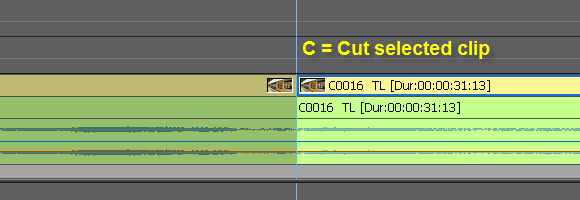
C = Cut (cut selected clip or clips, if multiple tracks are selected)
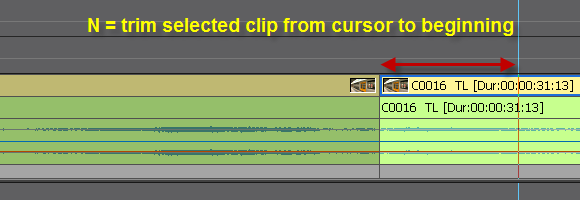
N = trim in point of selected clip at cursor position
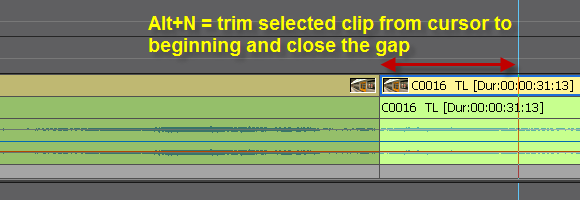
Alt+N = trim in point of selected clip at cursor position and close the gap
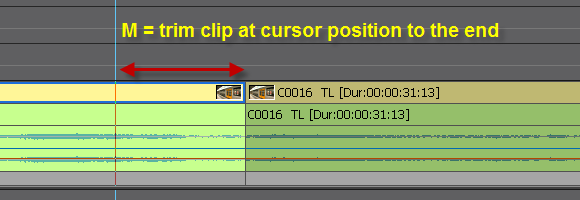
M = trim out point of selected clip at cursor position
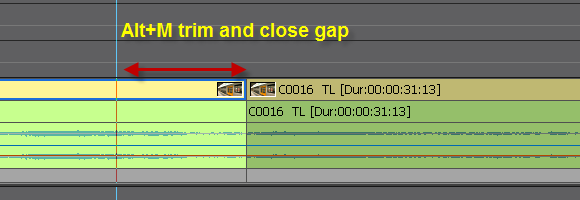
Alt+M = trim out point of selected clip and close the gap
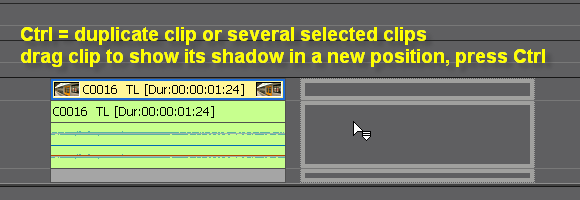
Ctrl = duplicate clip or clips
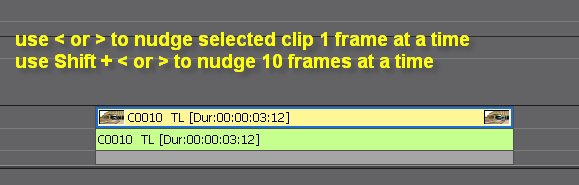
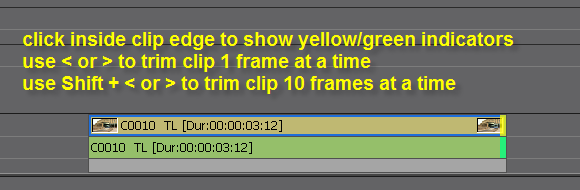
Use Comma or Dot keys to nudge clip left or right 1 frame at a time or 10 frames at a time
Use Comma or Dot keys to trim in point of selected clip with yellow/green indicators
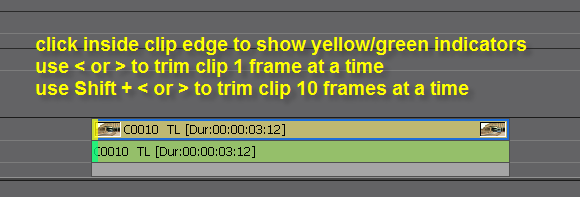
Use Comma or Dot keys to trim out point of selected clip with yellow/green indicators
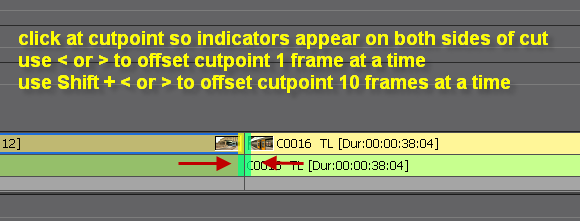
Use Comma and Dot keys to offset the cut point 1 frame or 10 frames at a time
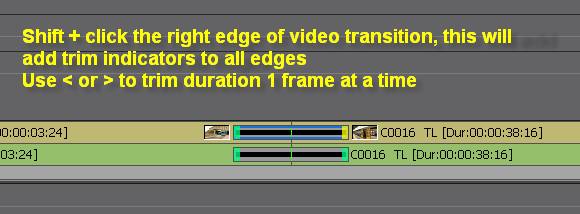
Use Shift + click and Comma and Dot keys to change transition duration
Use Comma and Dot keys to change duration of transitions such as audio or video
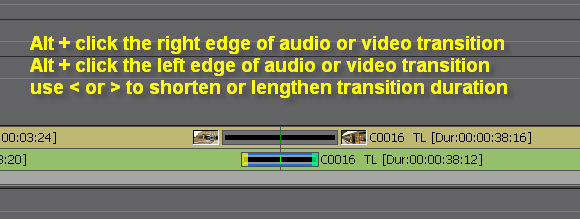
View a video of various ways of trimming transitions with Alt + click and Comma and Dot
Back to more Video Editing Tips and Tricks