Antons Video Productions
20 Solander Ave
West Hoxton 2171 NSW, Australia
+612 9825 9999
Using TmpgEnc Mastering Works 5 for creating mpeg4 for web and ipad
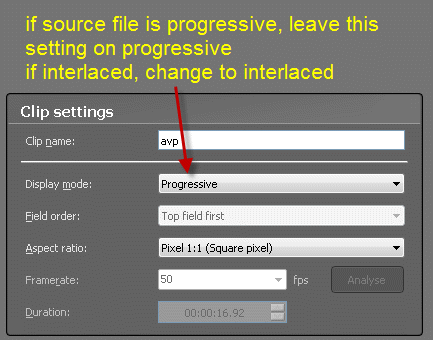
1. Start Mastering Works, start new project and load your Canopus HQ Fine (or other) source file. If the source file is progressive, leave the settings on progressive, if the source file is 1920x1080 or 1280x720, leave aspect on 1:1, for any other format, set accordingly
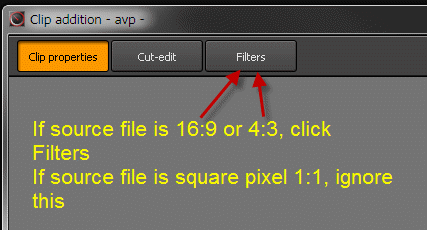
2. If source file is 16:9 or 4:3, click Filters
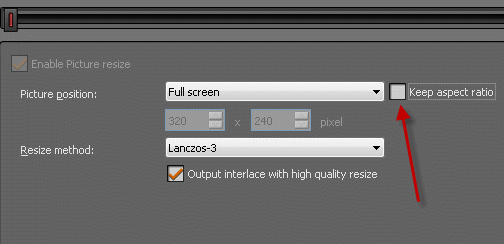
3. Untick keep aspect
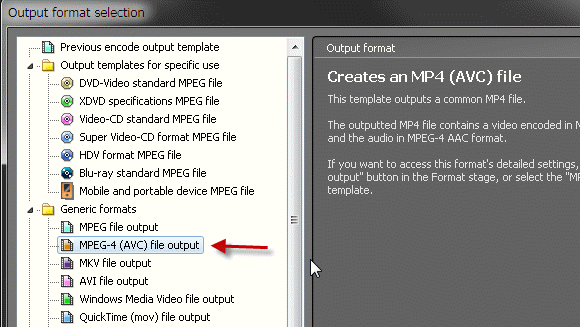
4. Select Mpeg-4 file output
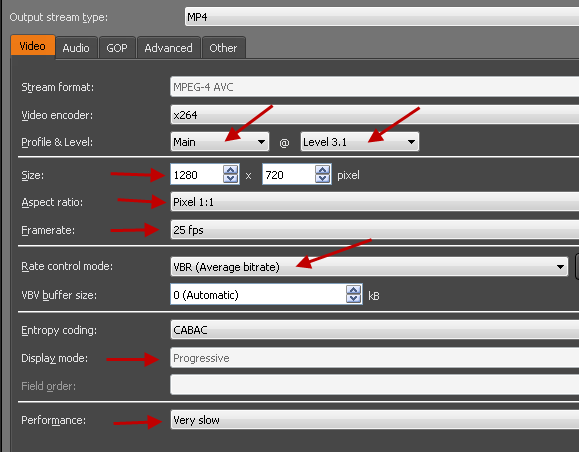
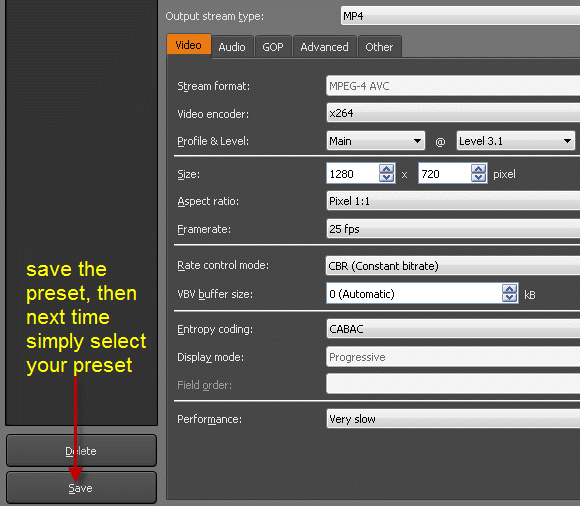
5. Set all settings as seen below for PAL, change frame rate to 30 in case of NTSC
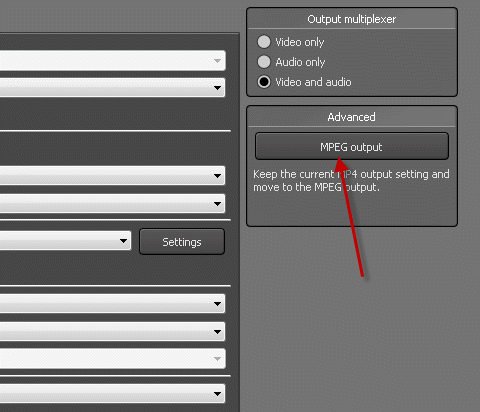
6. Click advanced MPEG output
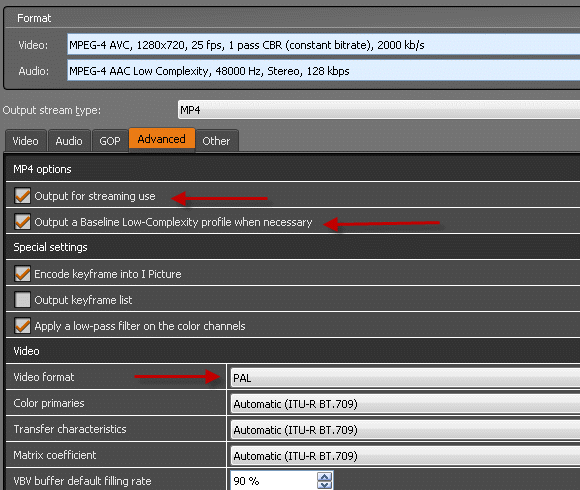
7. Enable Output for streaming use and Output a Baseline Low Complexity Profile and set PAL or NTSC, leave all other settings as they are, no need to change Audio or GOP or Other settings
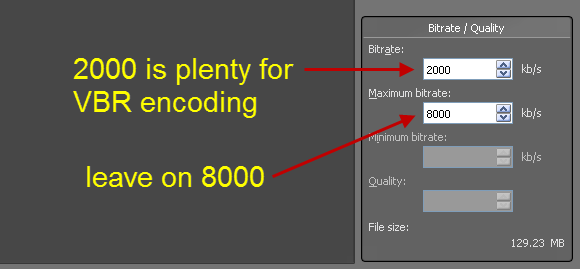
8. Set the bitrate in the Video Tab, 2000 is normally plenty for web use
9. Finally, save your preset for future use
Back to more Video Editing Tips and Tricks