Antons Video Productions
20 Solander Ave
West Hoxton 2171 NSW, Australia
+612 9825 9999
Power Point slides converted for EDIUS use
The first step is to determine pixel size of the PP slides, if your EDIUS project is 1440x1080, then we want the slide to be saved as 1440x1080 Bitmap.
To achieve this, you need to change the page setup of the Power Point. By default it is set to On Screen Show at 25.4cm x 19.05cm
You can go to this Conversion Site to convert pixel to cm, so I typed 1440 and 1080 and it gave me 38.1cm and 28.575cm
So enter these dimensions in Power Point page setup, then export to Bitmap or tif or png
Each resulting slide will be 1440x1080 and as a result will look excellent in EDIUS.
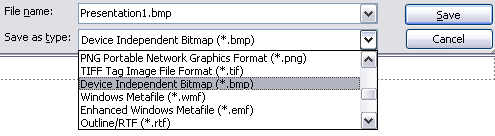
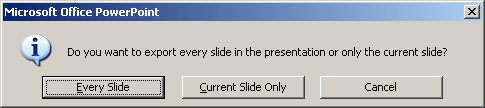
then choose Every Slide to export all slides in one hit.
Highest Quality Method - Enhanced Windows Metafile
1. Open Power Point presentation, don't alter page setup, leave the way it was supplied
2. Choose file, save as, Enhanced Windows Metafile
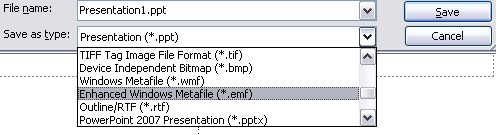
Using Enhanced Windows Metafile produces the highest quality, however it slows EDIUS startup time if lots of PP slides are used
Use the EDIUS layout tool to to zoom, stretch and position or set aspect to 16:9
You can change the aspect of all stills in the EDIUS bin to 16:9 in one hit while in list view
You can also apply a layout that is suitable to one slide, save as user preset and then apply it to all others in one hit
Enhanced Windows Metafiles have a large pixels aspect, this allows for a fair amount of zooming using the EDIUS layout tool.
Back to more Video Editing Tips and Tricks