Antons Video Productions
20 Solander Ave
West Hoxton 2171 NSW, Australia
+612 9825 9999
EDIUS Transition Trimming
The new way of trimming transitions takes a bit of getting used to, but once you know, it is pretty easy.
You will need to make use of the mouse, and the following keys:
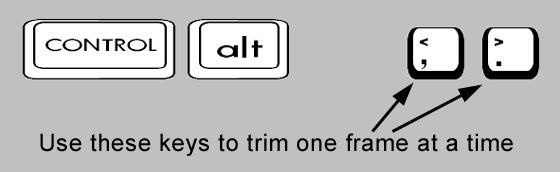
To lengthen or shorten video and audio transition by equal amounts on either side of the cut, use the following:
- Click anywhere on timeline so that no clips are selected
- Hold the Ctrl key and click one side of the video or audio transition, then the other side.
- Then let go of Ctrl key and drag the edge for lengthening or shortening or use the comma or full stop keys to lengthen or shorten one frame at a time. (Shift key plus the comma or full stop keys will do 10 frames at a time)
See the movie: Trimming Equal Amounts (270kb)
To lengthen or shorten and audio or video transition by any uneven amount, use the following technique:
- Click anywhere on timeline so that no clips are selected
- Hold your mouse over the edge of a transition and then push Alt key and click the transition edge.
- Let go of the Alt key and drag the transition edge to lengthen or shorten, or use the comma or full stop keys to lengthen or shorten one frame at a time. (Shift key plus the comma or full stop keys will do 10 frames at a time)
See the movie: Trimming Transitions Individually (330kb)
Back to more Video Editing Tips and Tricks