Antons Video Productions
4 Woolpack Street
Braemar 2575 Southern Highlands
NSW Australia
+61 2 418 626 417
Windows 7 64bit Performance Improvement Tips for EDIUS users
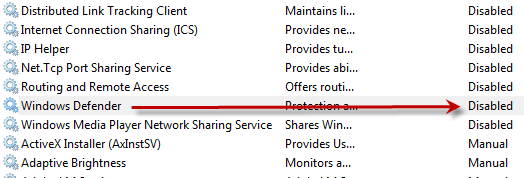
1. Go to services and stop Windows defender and then set startup type to disabled.
(right click Computer, left click manage, services and applications, services)
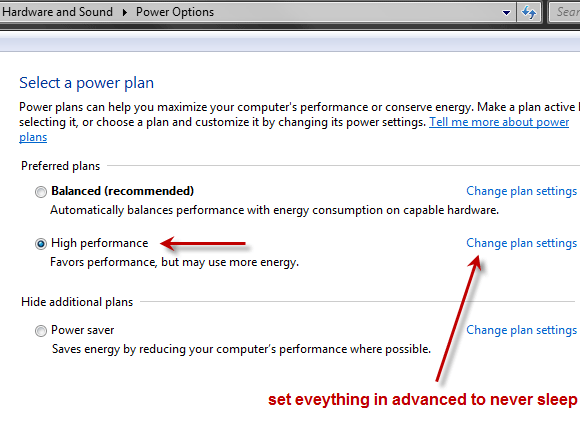
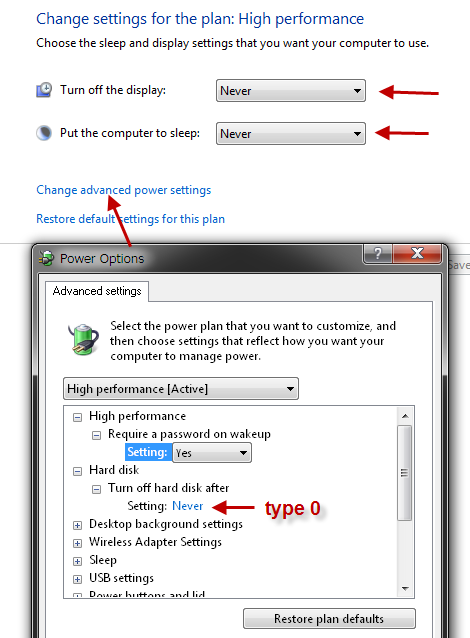
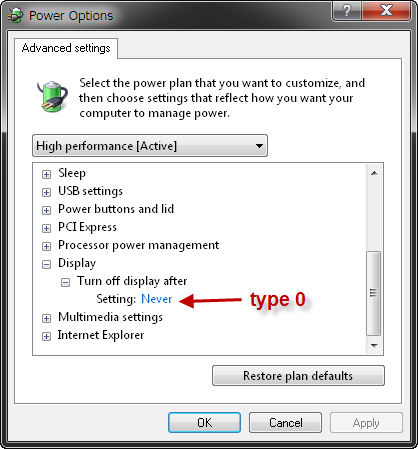
2. Set the Power options to high performance and in advanced settings, make sure nothing is set to sleep mode or to turn off mode etc.
(go to control panel, hardware and sound or system and security, power options)
3. Turn off drive indexing service of all drives where video or data used by Edius is stored.
(double click computer, right click each drive you wish to disable from indexing)
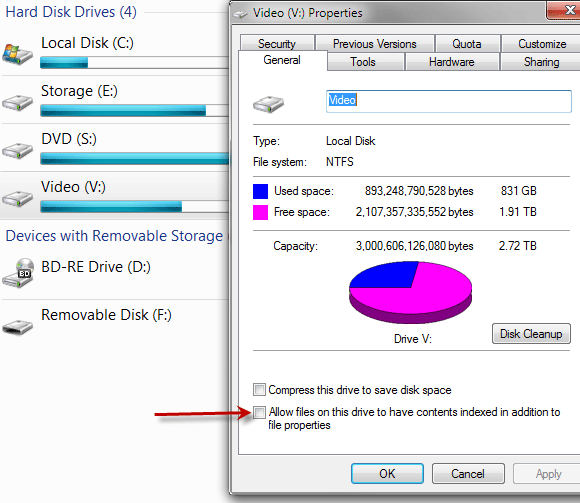
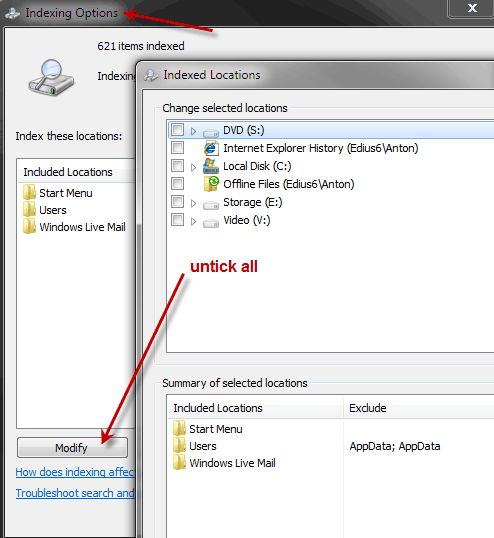
4. Disable search indexing options on all drives that are used by Edius for video or other data. (click the start button, type indexing in the search box just above start)
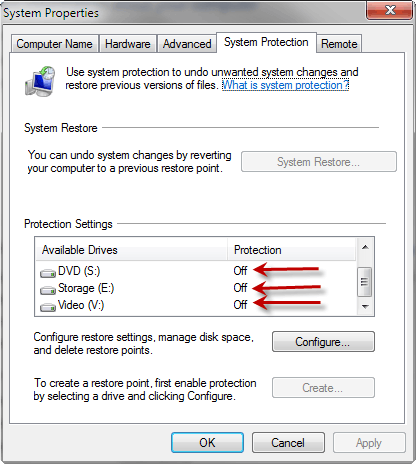
5. Disable system restore on all drives that are used by EDIUS for video or other data.
(right click computer, left click properties, system protection)
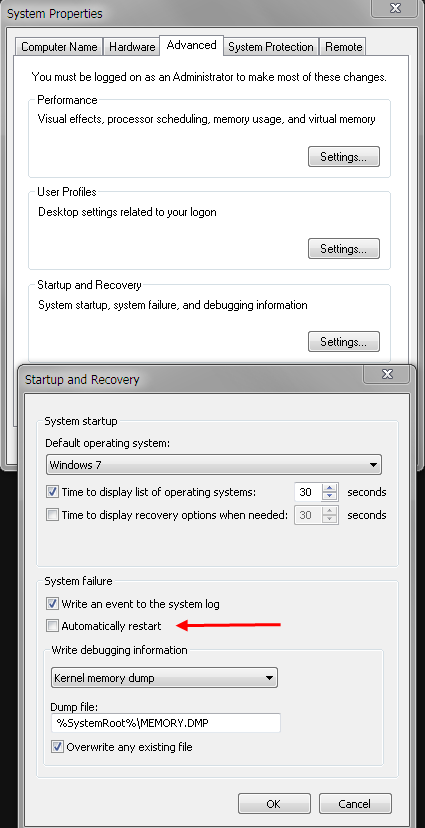
6. Disable automatically restart when a BSOD occurs, this will allow you to read the cause of the problem.
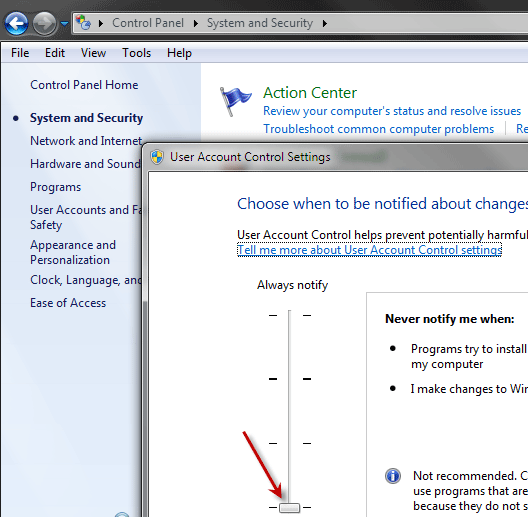
7. Set the User Account Control slider all the way to the bottom.
(go to control panel, system and security, user account control settings)
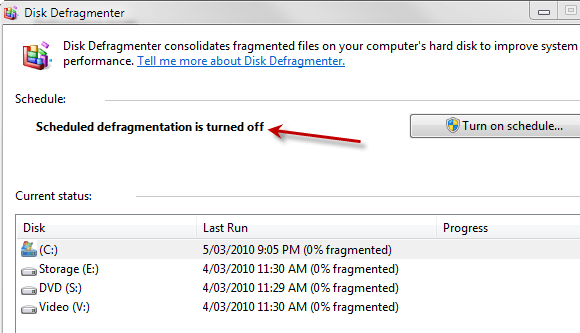
8. Turn off automatic defragmentation schedules on all drives used by Edius.
(go to control panel, system and security, administrative tools, defragment your hard disk)
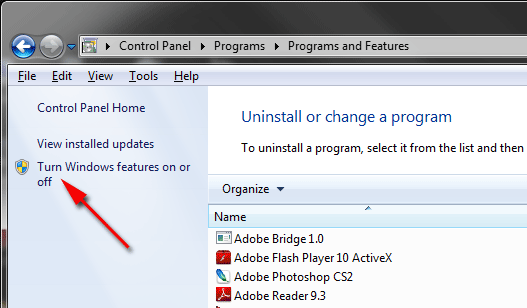
9. Control Panel, Programs and Features, Click Turn Windows features on or off
10. Turn off all Windows features as seen below
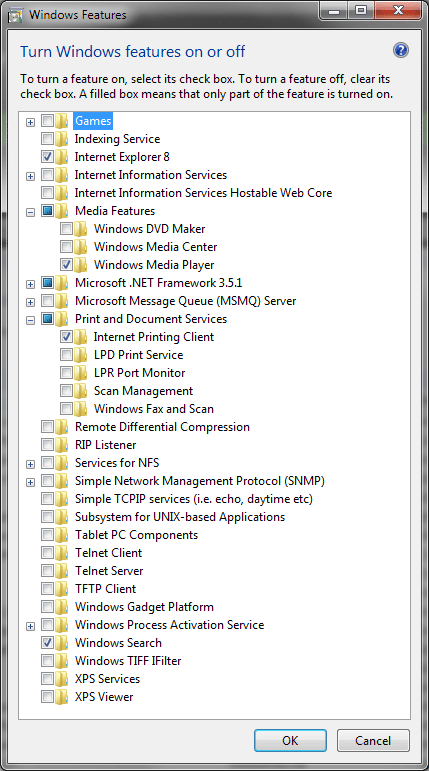
11. Taskmanager should show lots less running processes now and EDIUS will be far more responsive.
12. Right click computer, properties, advanced system settings, performance options, disable all options as seen below
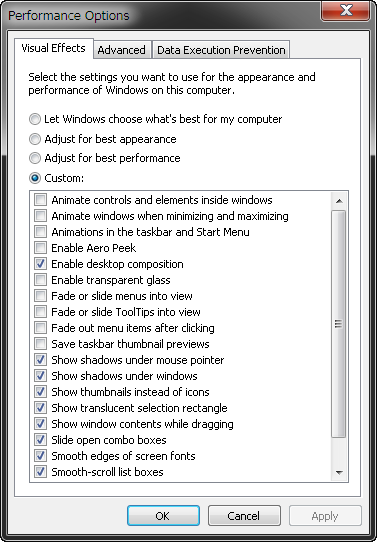
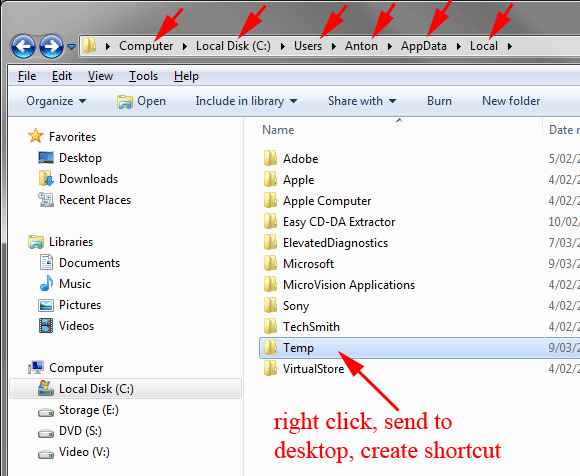
13. Empty your temp folder daily, create a shortcut to temp on your desktop. Open Windows Explorer, go to tools, folder options, click view tab, click show hidden files and folders, then create shortcut to temp by following the screenshot below. Use your user name instead of Anton as seen below.
14. Do not run any anti virus or any anti spyware software while editing
Custom built performance computers for EDIUS
Back to more Video Editing Tips and Tricks